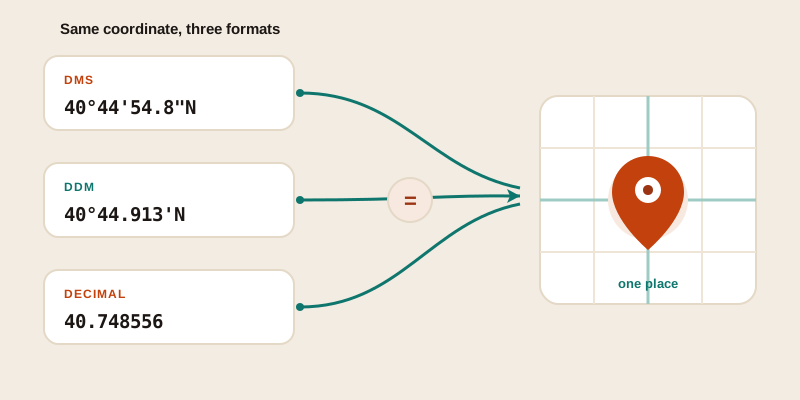
You copy a coordinate from one place, paste it into another, and the app spits it back at you: "invalid location." The numbers look fine. The problem is almost never the location — it's the format. The same spot on Earth can be written as 40°44'54.8"N or 40.748556, and a tool that wants one will reject the other outright. Here's the formula to convert between the three coordinate formats by hand, the one rule that decides whether a number is positive or negative, and the specific mismatches that make apps choke on a perfectly valid paste.
The three formats, side by side
Every latitude/longitude coordinate describes the same thing — an angle measured from the equator (latitude) and from the Prime Meridian (longitude). What changes is how that angle is written down. There are three formats in everyday use, and almost every "it won't accept my coordinates" problem comes from confusing them.
| Format | Short name | Same point, written out | Where you meet it |
|---|---|---|---|
| Decimal Degrees | DD | 40.748556, -73.985694 | Map apps, GIS, programming, most websites |
| Degrees Decimal Minutes | DDM | 40°44.913'N, 73°59.142'W | Marine GPS, aviation, fishing charts |
| Degrees Minutes Seconds | DMS | 40°44'54.8"N, 73°59'8.5"W | Surveying, plat maps, classic atlases |
All three point at the very same doorway of the Empire State Building. The difference is purely notation — like writing the same length as "1.5 metres" or "1 metre 50 centimetres." Once you can see them as the same number dressed three ways, conversion stops feeling like a translation problem and becomes simple arithmetic.
The DMS-to-decimal formula (the one to memorise)
This is the conversion people search for most, because DMS is the format that map apps reject most often. The good news is that it's a single line of arithmetic.
Decimal Degrees = Degrees + (Minutes ÷ 60) + (Seconds ÷ 3600)
Why those numbers? A degree is divided into 60 minutes, and each minute into 60 seconds — the same system as a clock. So one minute is 1/60 of a degree, and one second is 1/60 of 1/60, which is 1/3600 of a degree. You're just converting the smaller units back into fractions of a degree and adding them up.
Worked example
Convert 40°44'54.8"N to decimal degrees:
- Start with the whole degrees: 40
- Minutes ÷ 60: 44 ÷ 60 = 0.733333
- Seconds ÷ 3600: 54.8 ÷ 3600 = 0.015222
- Add them together: 40 + 0.733333 + 0.015222 = 40.748556
The "N" tells you the sign is positive, so the final answer is 40.748556. Do the same for the longitude (73°59'8.5"W) and, because it's West, you flip the sign to get -73.985694. That pair — 40.748556, -73.985694 — is exactly what a map app expects.
The hemisphere-to-sign rule
This single rule causes more failed pastes than any formula slip. DMS and DDM use letters (N, S, E, W) to show direction. Decimal degrees has no letters — it uses a sign instead. Get the translation wrong and your coordinate lands in the wrong hemisphere, often on the other side of the planet.
| Letter | Applies to | Decimal sign |
|---|---|---|
| N (North) | Latitude | Positive (+) |
| S (South) | Latitude | Negative (−) |
| E (East) | Longitude | Positive (+) |
| W (West) | Longitude | Negative (−) |
The shortcut to remember: South and West are negative. North and East are positive. So Sydney (33°52'S, 151°12'E) becomes roughly -33.87, 151.21, while Rio de Janeiro (22°54'S, 43°10'W) becomes -22.91, -43.17 — both numbers negative, because it sits in the southern and western hemispheres.
One caution: when you remove the letter, you must add the sign. A coordinate like "33.87" with no minus on a South latitude points to a spot in the northern hemisphere. The app won't error — it will just confidently take you to the wrong place. If you ever want to sanity-check a converted pair against the real world, drop it into the GPS to address tool and see whether the city it names is the one you expected.
DDM: the in-between format
Degrees Decimal Minutes (DDM) is the one boaters and pilots live in, and it trips up people who assume there are only two formats. It keeps whole degrees and whole-ish minutes, but instead of breaking minutes down into seconds, it puts a decimal on the minutes themselves: 40°44.9133'N.
DDM to decimal degrees
Even simpler than DMS, because there are no seconds to handle:
Decimal Degrees = Degrees + (Minutes ÷ 60)
So 40°44.9133'N becomes 40 + (44.9133 ÷ 60) = 40 + 0.748555 ≈ 40.74855. Same point, same answer.
Converting DMS to DDM
To turn seconds into decimal minutes, divide the seconds by 60 and add them to the whole minutes. From 40°44'54.8": 54.8 ÷ 60 = 0.9133, so you get 40°44.9133'. This is the conversion sailors make constantly when reading a coordinate off a chart printed in DMS into a plotter that wants DDM.
Going the other way: decimal degrees to DMS
Sometimes you have a clean decimal number and need it in DMS — for a survey form, an aviation database, or an older tool. The process reverses the formula by peeling off one unit at a time.
Convert 40.748556 to DMS:
- Degrees = the whole-number part = 40
- Take the leftover decimal (0.748556) and multiply by 60: 0.748556 × 60 = 44.913. The minutes are the whole part = 44
- Take that leftover (0.913) and multiply by 60: 0.913 × 60 = 54.8. Those are the seconds = 54.8
- Because the original number was positive and it's a latitude, the hemisphere is N
Result: 40°44'54.8"N — right back where we started. The pattern is always the same: keep the whole number, multiply the remainder by 60, repeat.
Why apps reject a valid coordinate
When a paste fails, it's usually one of a handful of format mismatches rather than a wrong location. Here's what to look for before you assume the coordinate is bad.
- You pasted DMS into a decimal-only field. The most common one. A box expecting 40.748556 sees the degree symbol, apostrophe, and quote marks in 40°44'54.8" and gives up. Convert to plain decimal first.
- The symbols got mangled. Copying across apps can turn the degree sign (°) into a question mark, or swap straight quotes for curly "smart quotes." A parser tuned for straight marks won't recognise the curly versions. Retype the symbols if a paste looks off.
- Latitude and longitude are swapped. Most tools want latitude first. Some mapping libraries (and GeoJSON) want longitude first. Swap them and a New York coordinate suddenly lands in the ocean off Antarctica. If the result is wildly wrong, try reversing the pair.
- Comma versus period as the decimal mark. In many European locales a comma is the decimal separator, so "40,748556" can confuse a tool expecting "40.748556" — or worse, get read as two separate numbers. Use a period for the decimal point and a comma (or space) only to separate the two numbers.
- A dropped or doubled minus sign. Losing the minus on a West longitude flips the hemisphere; an extra one does too. Count your signs after every conversion.
- Out-of-range values. Latitude must sit between −90 and 90; longitude between −180 and 180. A value of 95 for latitude is impossible and will be rejected. If your "degrees" came out above those limits, you probably mixed up which number is which.
How precise do the decimals need to be?
When you convert, you'll often wonder how many decimal places to keep. Each one buys you roughly ten times more precision. Trimming them isn't "wrong," but it does move the point on the ground.
| Decimal places | Example | Roughly accurate to |
|---|---|---|
| 2 | 40.74 | About 1 km |
| 3 | 40.748 | About 110 m |
| 4 | 40.7485 | About 11 m |
| 5 | 40.74855 | About 1 m |
| 6 | 40.748556 | About 10 cm |
For everyday use — finding a building, sharing a meeting spot — five or six places is plenty, and matches the precision of consumer GPS. For seconds in DMS, one decimal place on the seconds (54.8") sits at roughly the same metre-level accuracy. Carrying ten decimal places implies sub-millimetre certainty your device never actually had, so don't sweat the extra digits.
Put it into practice
The whole skill comes down to three moves: divide minutes by 60 and seconds by 3600 to get decimals, add them to the whole degrees, and apply the South-and-West-are-negative sign rule. Master those and you can move a coordinate between a drone log, a marine plotter, and a phone map without it ever getting rejected.
If you'd rather skip the arithmetic, the find GPS coordinates tool shows any place in clean decimal degrees ready to copy, and the where am I tool reads your current spot in a format you can paste anywhere. To go from numbers back to a real street and double-check your conversion landed where you meant, run the pair through the GPS to address tool. And if reading the raw numbers still feels shaky, our guide to latitude vs longitude and the companion piece on finding the coordinates of any place cover the fundamentals that make every conversion click.